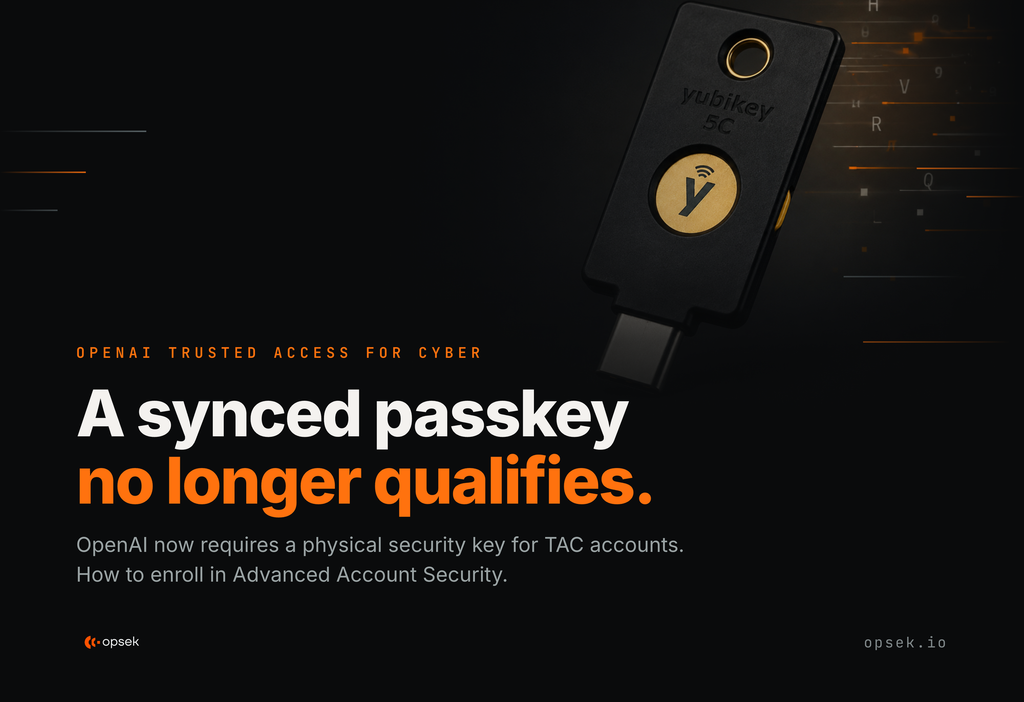
If you are part of OpenAI's Trusted Access for Cyber (TAC) program, there is a new requirement to act on. From October 1st, 2026 (previously Sept 1st), individual TAC members must turn on Advanced Account Security (AAS) and sign in with a physical security key. A passkey synced through a password manager will not qualify.
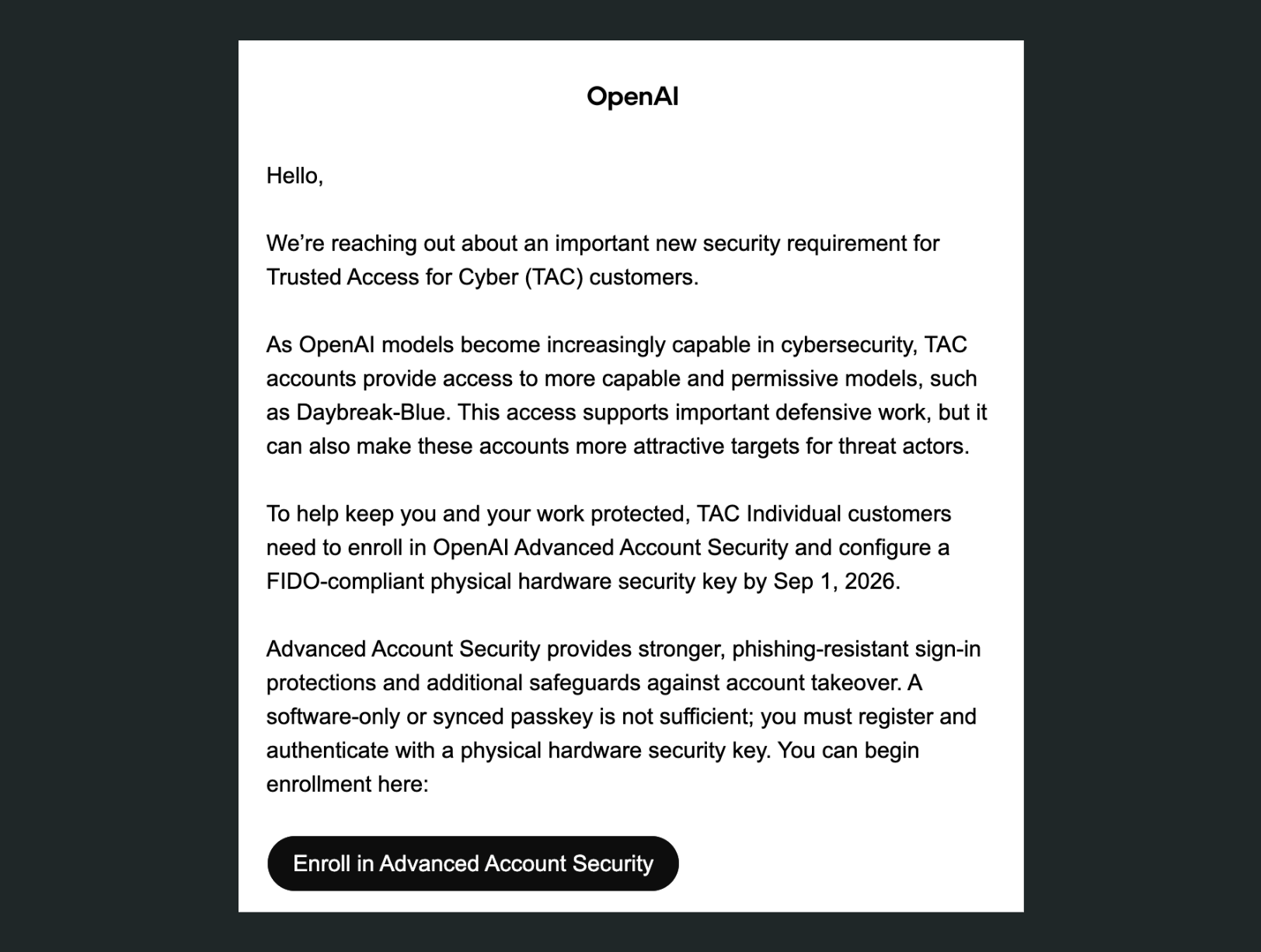
This guide covers what TAC is, what AAS changes on your account, which login option to choose when you add your key, and how to enroll step by step.
What is Trusted Access for Cyber (TAC)?
Trusted Access for Cyber (TAC) is OpenAI's identity verification program for security professionals.Regular accounts apply broad safeguards for any work related to cybersecurity. Verified TAC members gain access to Daybreak, a model tier built for security work. Daybreak comes in two tiers:
Daybreak Blue — defensive work
- Vulnerability triage and validation
- Secure code review and patch validation
- Malware analysis and detection engineering
- Threat hunting and incident response
- Model: GPT-5.6 Sol, guardrails lifted
- Access: standard TAC verification
Daybreak Red — offensive research
- Exploit validation and proof of concept development
- Penetration testing and red teaming
- Model: GPT-5.6-Cyber, trained for offensive work
- Access: separate approval, ongoing verification, tighter monitoring
How to get in:
Individuals verify at chatgpt.com/cyber with a government ID check run through Persona; organizations apply through the enterprise form. Either way, use stays scoped to systems you own, operate, or have explicit permission to test. You can read more on OpenAI's announcement of the program.
What Advanced Account Security (AAS) changes on your account?
Advanced Account Security (AAS) is OpenAI's most secure login mode for both ChatGPT and Codex, and it is required for TAC members. Any user can enable it under Settings > Security and Login > Advanced Account Security.
Compared with OpenAI's regular authentication, Advanced Account Security makes these changes:
- Password login is turned off. You log in with passkeys and security keys.
- Email and SMS login codes are disabled.
- Email and SMS account recovery are disabled.
- Login attempt email alerts turn on.
- Sessions get shorter, so you log in a bit more often.
- Your conversations are excluded from model training automatically.
Passkeys vs Security Keys
FIDO2/WebAuthn is the standard behind passwordless login. When you register, your device generates a key pair: a private key that stays with you, and a public key that the site keeps. Logging in means signing a cryptographic challenge with your private key, so no secret ever crosses the wire. The credential is also bound to the real site's domain, so a phishing page on a lookalike domain won't work even if you fall for it.
When setting up FIDO2/WebAuthn authentication you may be prompted to choose between "Passkey" and "Security Key". Both are different types of credentials and both use the same public-private key cryptography; the difference is what the credential remembers.
- Security Key: the key remembers nothing about your accounts. You type your username first, the site hands your key what it needs, and the key unlocks it on the spot.
- Passkey: the credential remembers the account itself (e.g., which site, which username), so you can log in without typing anything. Passkeys can be stored on a hardware key or synced through the cloud (iCloud Keychain, Google Password Manager).
A passkey saved onto a hardware key (e.g., a YubiKey) is not a cloud credential. It stays isolated from any sync service, and it requires physical possession of the device, plus a PIN and a touch to work.
For a deeper look at how the two modes behave at login, see YubiKey: "Security Key" vs "Passkey".
Why is OpenAI updating their requirements?
TAC accounts reach models that find vulnerabilities and reason about exploit code. That makes them worth stealing, and the login protecting them the weakest point in the chain. Passwords, SMS codes, and emailed links can all be phished. A FIDO2 credential cannot, and where that credential lives is what separates a hardware key from a synced passkey.
A YubiKey credential is generated inside the key's secure element and never leaves it: it cannot be exported, copied, or synced. A stolen password, compromised laptop, or breached vault still does not get an attacker in, because the thing they need is in your pocket. A synced passkey uses the same cryptography, but its private key lives in a cloud account so it can follow you across devices. The sync account becomes the target, which is why OpenAI requires hardware keys for accounts reaching its most capable cyber models.
How to enroll in Advanced Account Security, step by step
You can start on the web, iOS, or Android. Mobile will send you to a browser to finish. Have both YubiKeys with you before you begin, and if you want to jump straight in, the setting lives at chatgpt.com/advanced-account-security.
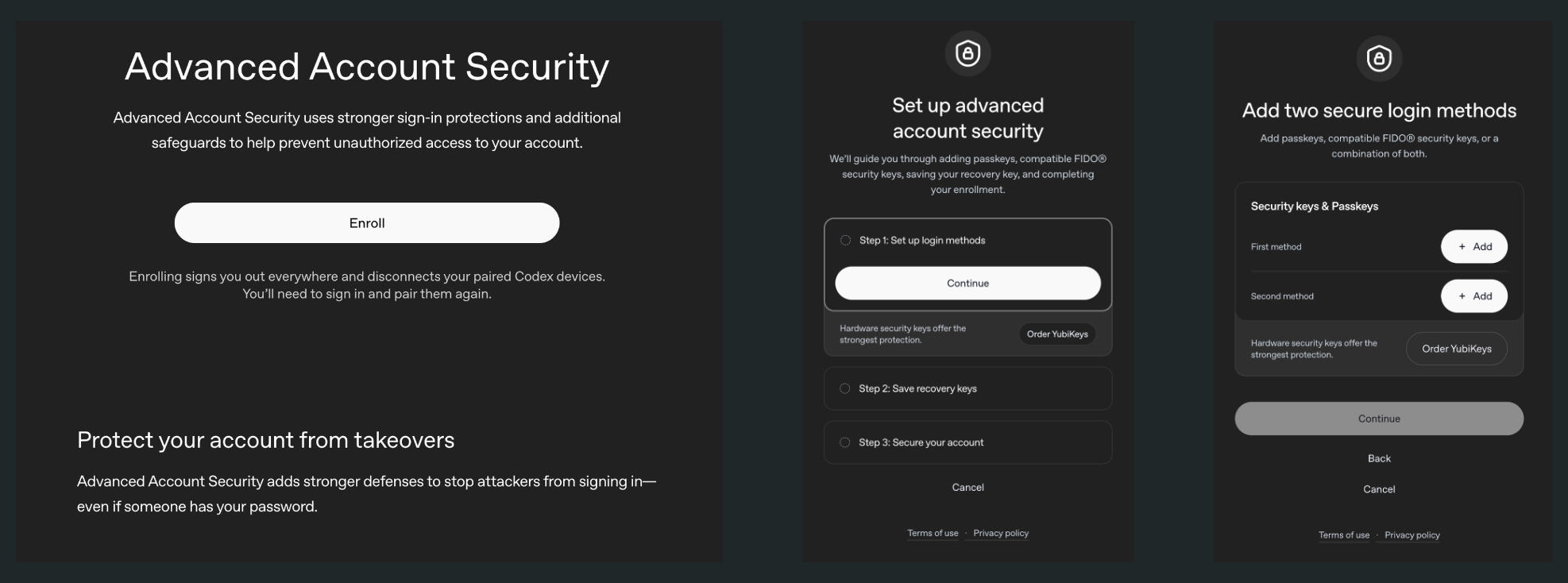
1. Open the enrollment page. In ChatGPT go to Settings, then Security and Login, then Advanced Account Security, and select Enroll. TAC members can also start from the enrollment link in the OpenAI email. Enrolling logs you out everywhere and disconnects paired Codex devices.
2. Start the guided setup. The flow runs in three steps: set up login methods, save recovery keys, and secure the account. Select Continue on step one.
3. Add your first login method. Select Add, then choose Passkey. Your operating system will open its own dialog and usually suggest iCloud Keychain or your password manager. Choose the security key or YubiKey entry instead, so the credential is written to the hardware. Insert the key, enter its PIN, touch it when it lights up, and give it a name you will recognize later. The simpler path: choose Security key instead of Passkey; it goes straight to hardware and also satisfies the TAC requirement.
If your key isn't recognized, see OpenAI troubleshooting page.
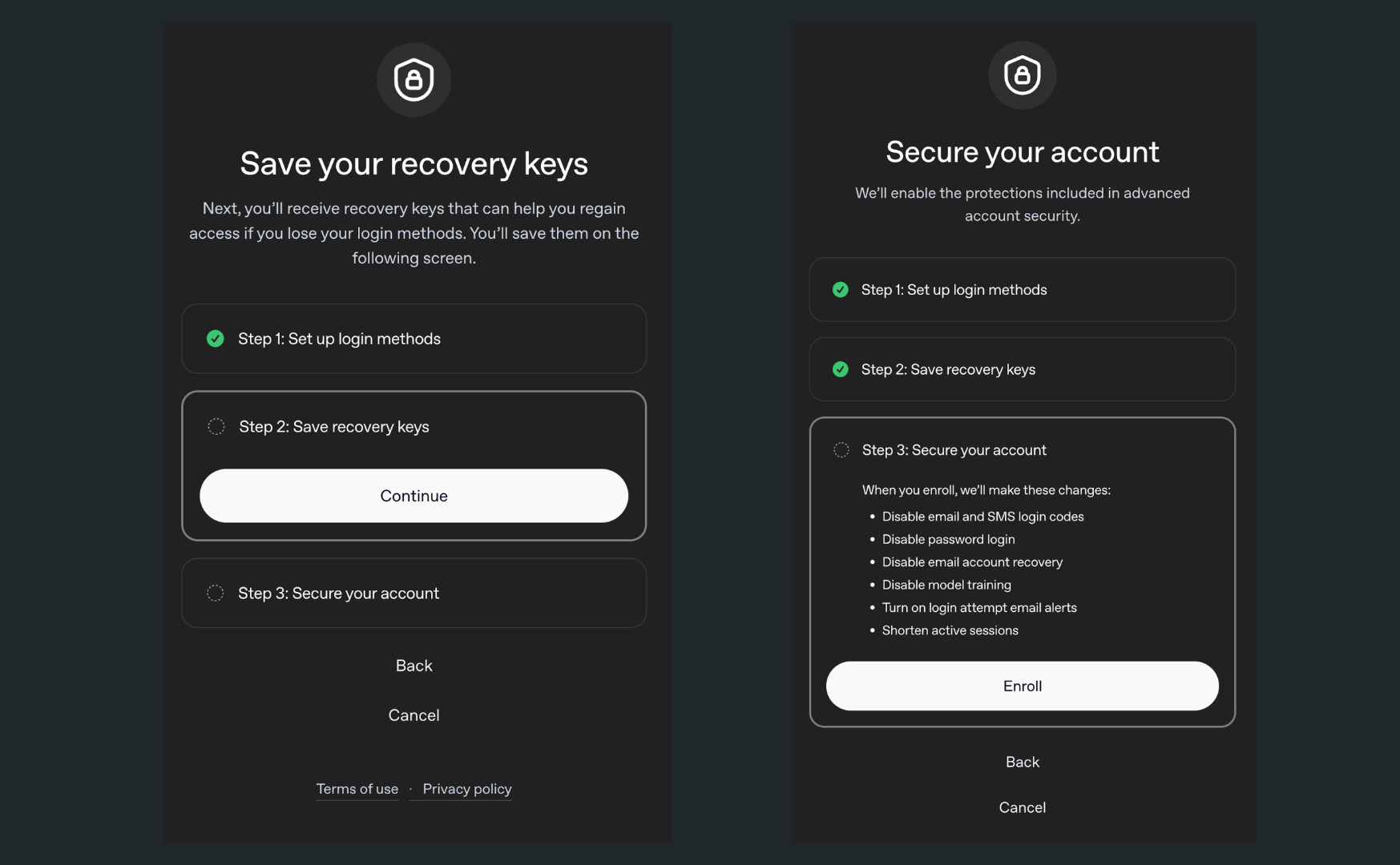
4. Add your second login method. Repeat the process with your backup key, so the second credential also lives on hardware rather than in a synced account. Once both are registered, select Continue.
5. Save your recovery keys. These are your only fallback if you lose your keys. OpenAI offers to copy or download them, but we recommend writing them down on paper and keeping them off your devices entirely. A file sitting on a laptop is one compromise away from being read, and it undoes everything you just set up. There is no later screen that asks you to confirm the keys, so check what you have written before you continue. Each key works once, and using one starts a 48-hour waiting period before the account unlocks.
6. Review the changes and enroll. The final screen lists everything that gets turned off and on. Read it, then select Enroll.
If enrollment doesn't go to plan. OpenAI maintains a troubleshooting page for Daybreak access covering keys that aren't recognized, a missing Advanced Account Security option, lost keys and recovery, and verification failures. Check it before contacting Support: OpenAI Daybreak - Common Issues and Troubleshooting.
Conclusion
TAC grants real security capability to people who prove who they are. The hardware key requirement is the other half of that bargain: an account that can reach those models is worth stealing, so the login protecting it has to be something an attacker cannot phish, copy, or sync out of a cloud account.
The setup takes ten minutes. Register two physical keys, save the passkey onto hardware rather than a password manager, write your recovery keys on paper. The same habit is worth extending to your email, code hosting, exchange logins, and anything else an attacker would be glad to reach.
To harden the machines those keys plug into, start with our free device hardening toolkit. If you want this handled across a team, that is what we do: hardening sessions and SEAL assessments, which we are accredited to certify. Get in touch.
Stay safe.
Opsek