
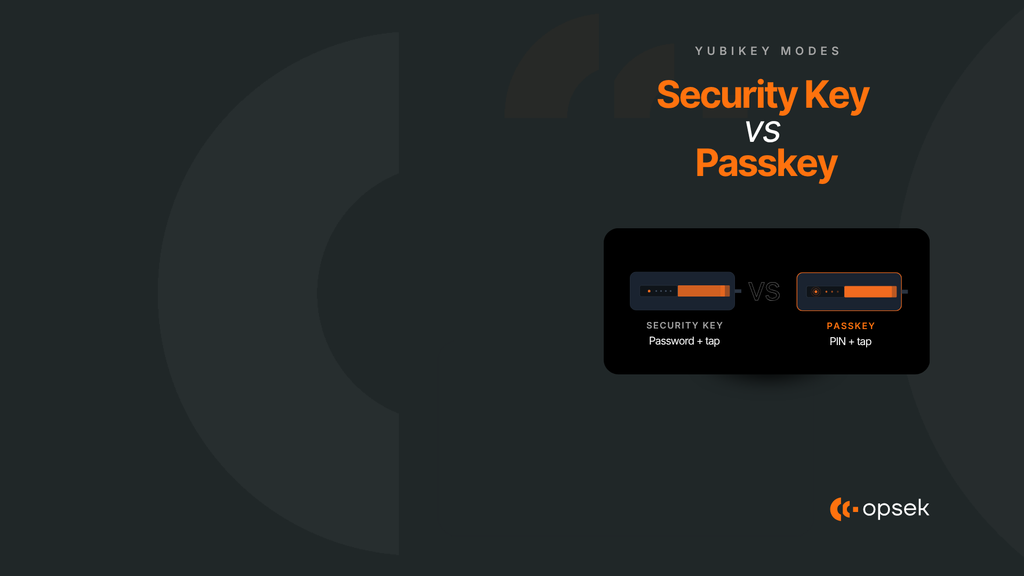
When you set up a YubiKey, you get two main options: register it as a security key, or save a passkey on it. Both are phishing-resistant, both use the same crypto under the hood. So what's the actual difference, and which one should you use?
This article breaks down what each mode is, what it does inside your authentication flow, and which setup is the strongest. If you operate in Web3, this is the kind of decision that determines whether a phishing site can drain your accounts or not.
Same crypto under the hood
Before the differences, let's get the common ground out of the way. Both modes run on the same FIDO crypto:
- The private key never leaves the YubiKey.
- Signatures are bound to the real domain, the browser enforces it.
- Fake sites can't trick the key into signing, no matter how good the phishing page looks.
So in terms of phishing resistance, both modes are identical. That's not where the difference lives.
The actual difference: what each one is in the auth flow
The split is about what role the YubiKey plays when you log in.
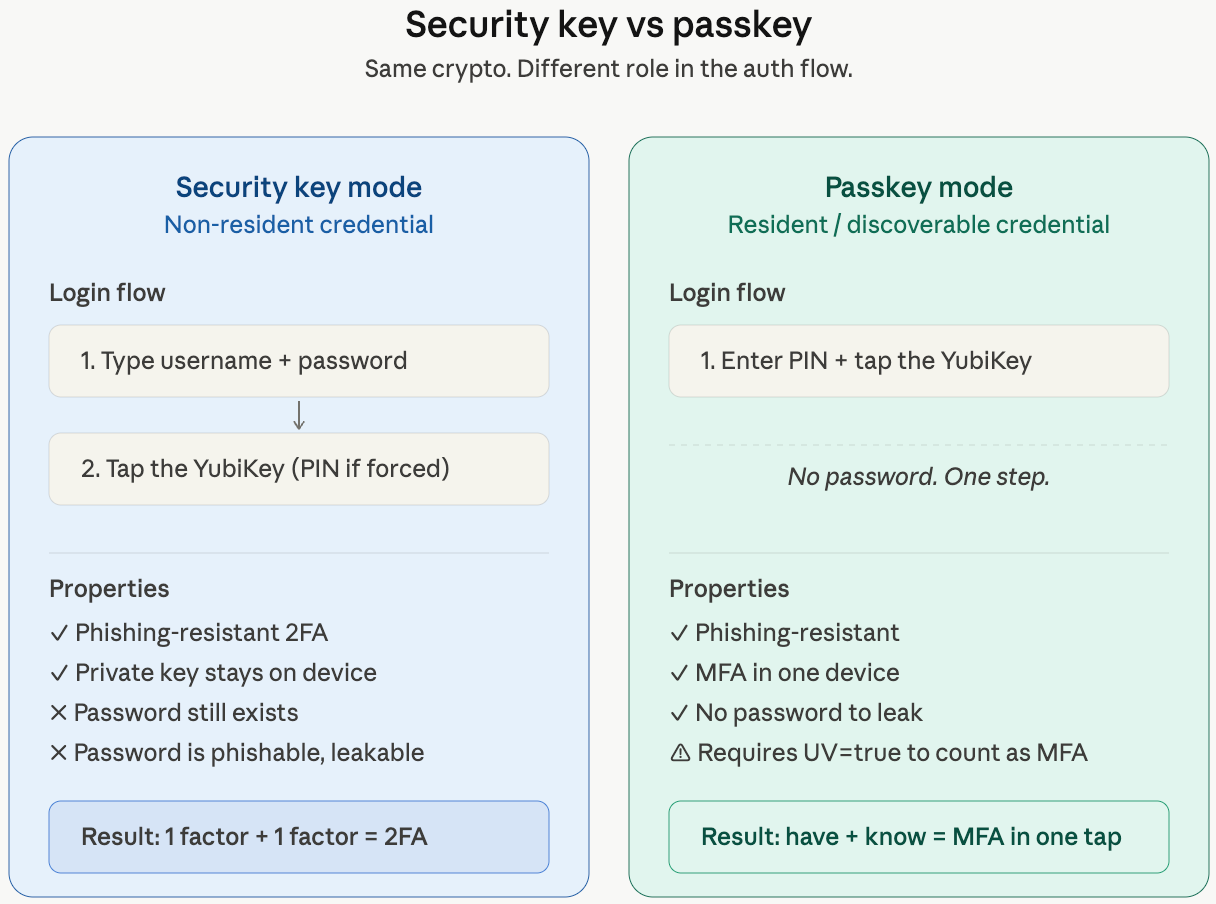
- Security key mode = a second factor added to your password.
Login = password + YubiKey touch. - Passkey mode = multi-factor authentication by itself, no password needed.
Login = YubiKey PIN + touch (one step, two factors).
That's the whole concept. Now let's look at how each one works underneath.
Security key mode (non-resident credential)
In security key mode, the YubiKey stores nothing about you:
- Nothing about the user is stored on the key.
- The server holds a "handle"; the key uses it to derive the signing key on the fly.
- You type your username and password, then tap the key.
- A PIN can be required (it has to be forced from the terminal) plus the touch.
This is the classic "2FA with a YubiKey" setup. You still have a password, the YubiKey just makes sure that password alone isn't enough.
Passkey mode (resident / discoverable credential)
In passkey mode, the credential lives on the key itself:
- Your username and the key are stored on the YubiKey.
- The site asks "who are you?", and the key answers.
- You unlock the key with a PIN, then tap.
- No password in the flow at all.
The login is one step that contains two factors. We'll get to why that counts as MFA in a second.
Why a passkey counts as MFA on its own
FIDO2 has a flag called User Verification (UV). When UV=true, the authenticator confirms locally that a PIN or biometric was checked before signing. The server gets ONE signature that proves both:
- Something you have, the YubiKey
- Something you know, the PIN
Two factors, one signature. That's MFA, and the server can verify it cryptographically.
Important UV nuance
A passkey is only true MFA if UV is enforced. Watch this:
- YubiKey passkey with PIN set,
UV=true= MFA - Security key with
UV=discouraged= just possession, 1FA - Synced passkey on a device with no lock screen = 1FA
Serious deployments require UV in the auth request. If you don't enforce it, you may be deploying something you think is MFA but isn't.
Security implications
Security key mode:
- Phishing-resistant 2FA ✅
- The password still exists, phishable, leakable, reusable ❌
Passkey mode (with UV):
- Phishing-resistant ✅
- MFA in one device, have + know ✅
- No password to leak, it doesn't exist ✅
- Lose the key + forget the PIN = locked out (this is why backups matter) ⚠️
The password being out of the picture is the part most people miss. Every password you eliminate is one less credential that can be stolen by an infostealer, leaked in a breach, or reused on a fake site.
TL;DR
Both modes stop phishing. The real questions to ask are:
- Is there still a password? Security key: yes. Passkey: no.
- Is User Verification enforced? This determines whether a passkey is real MFA.
Passkey + UV + backup key = strongest setup. Period.
If you're auditing your own setup or your organization's, this is the configuration to push for. And remember the rule we always repeat: always configure at least two YubiKeys, because they can not be backed up. Lose your only key with no backup and you'll be on the wrong end of an account recovery flow you don't want to be in.
If you want to properly set up your YubiKey, or go deeper into things like signing your Git commits with it, check out our YubiKey cheatsheet on GitHub. It includes a tutorial video walking through the full setup.
If you need help reviewing how YubiKeys, passkeys, and MFA are deployed across your team's accounts, reach out. This is exactly the kind of thing we look at during an Operational Security audit.